

Customize statuses from Kanban board
In the Kanban board, each status is represented as a column. You can customize statuses directly from the board.
Add a new status#
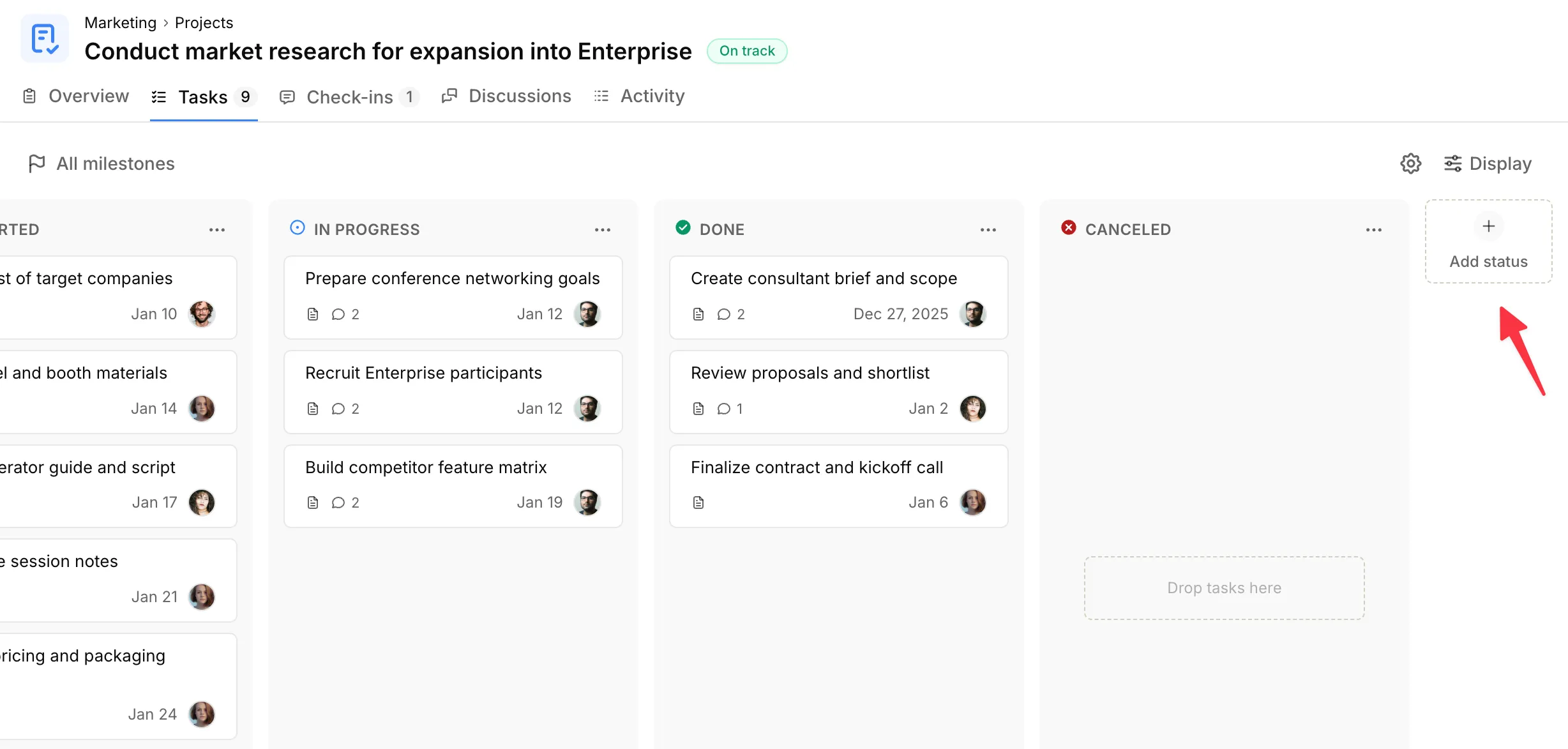
Section titled “Add a new status#”- Click the Add status button to the right of the last status column.
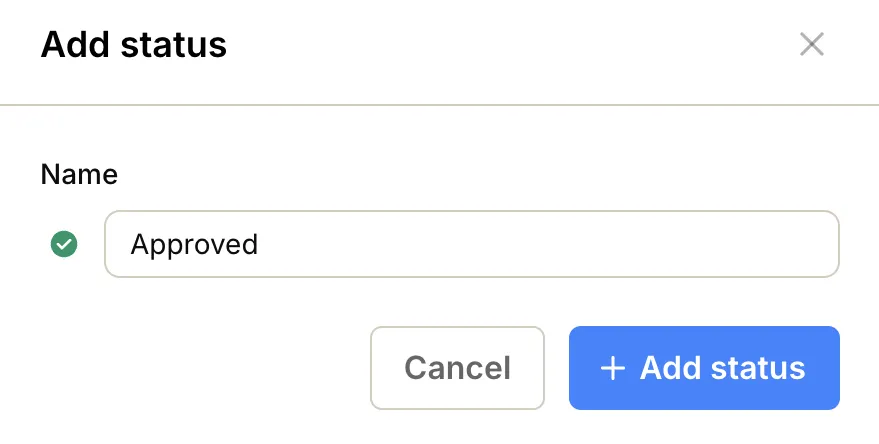
- Select an icon and color that best describes the new status.
- Enter a name for the status.
- Click Add status.
Edit an existing status#
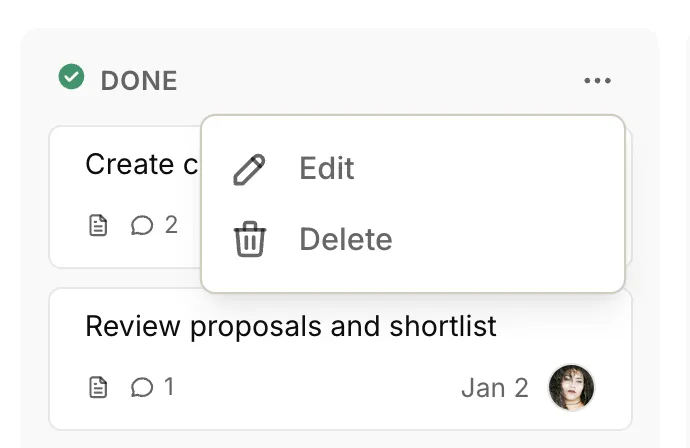
Section titled “Edit an existing status#”- Click the … icon in the top-right corner of the status column.
- Select Edit.
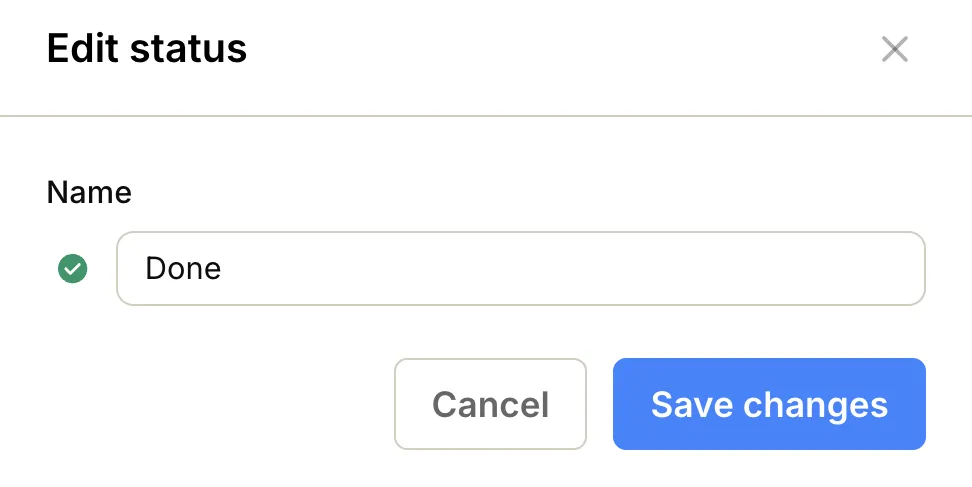
- Select a new icon and color that best describes the status.
- Enter the new name.
- Click Save changes.
Delete a status#
Section titled “Delete a status#”- Click the … icon in the top-right corner of the status column.
- Select Delete.
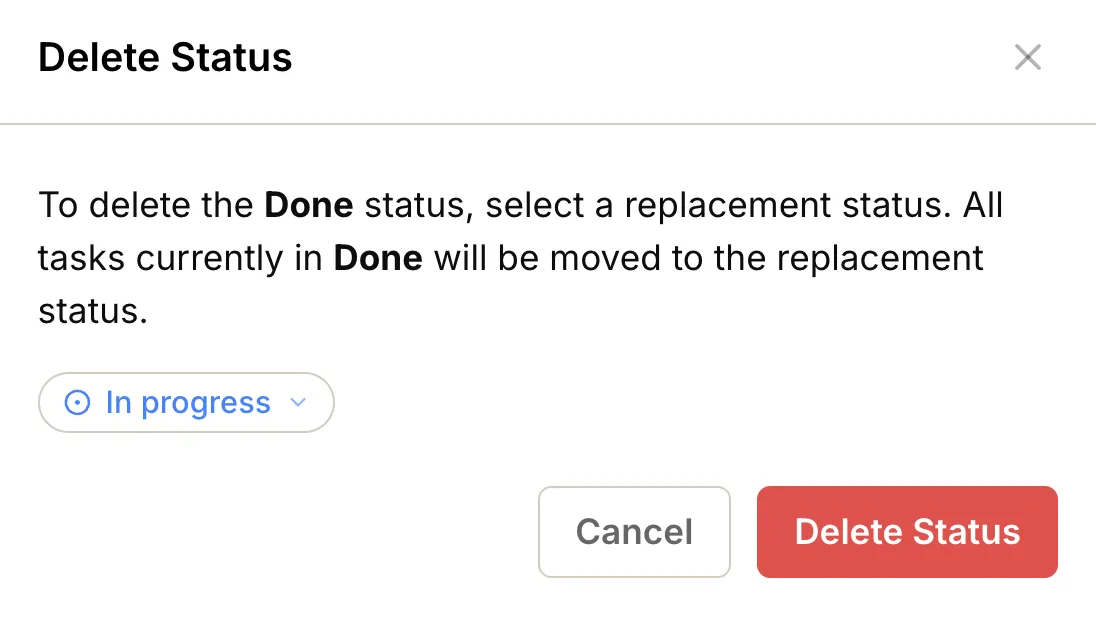
- Select a replacement status.
- Click Delete Status.
Reorder statuses#
Section titled “Reorder statuses#”Grab the status column at the top, then drag it to the desired position.