

Customize project statuses
Operately allows you to customize task statuses on a per-project basis. This gives you the flexibility to define a workflow that best fits your team’s specific needs for each project.
Accessing status settings#
Section titled “Accessing status settings#”To begin customizing statuses:
- Navigate to the Project page.
- Click on the Tasks tab.
- Click the icon located in the top-right corner of the tasks view.
- Select Manage statuses from the dropdown menu.
The “Manage Statuses” form will open, allowing you to add, edit, reorder, or delete statuses.
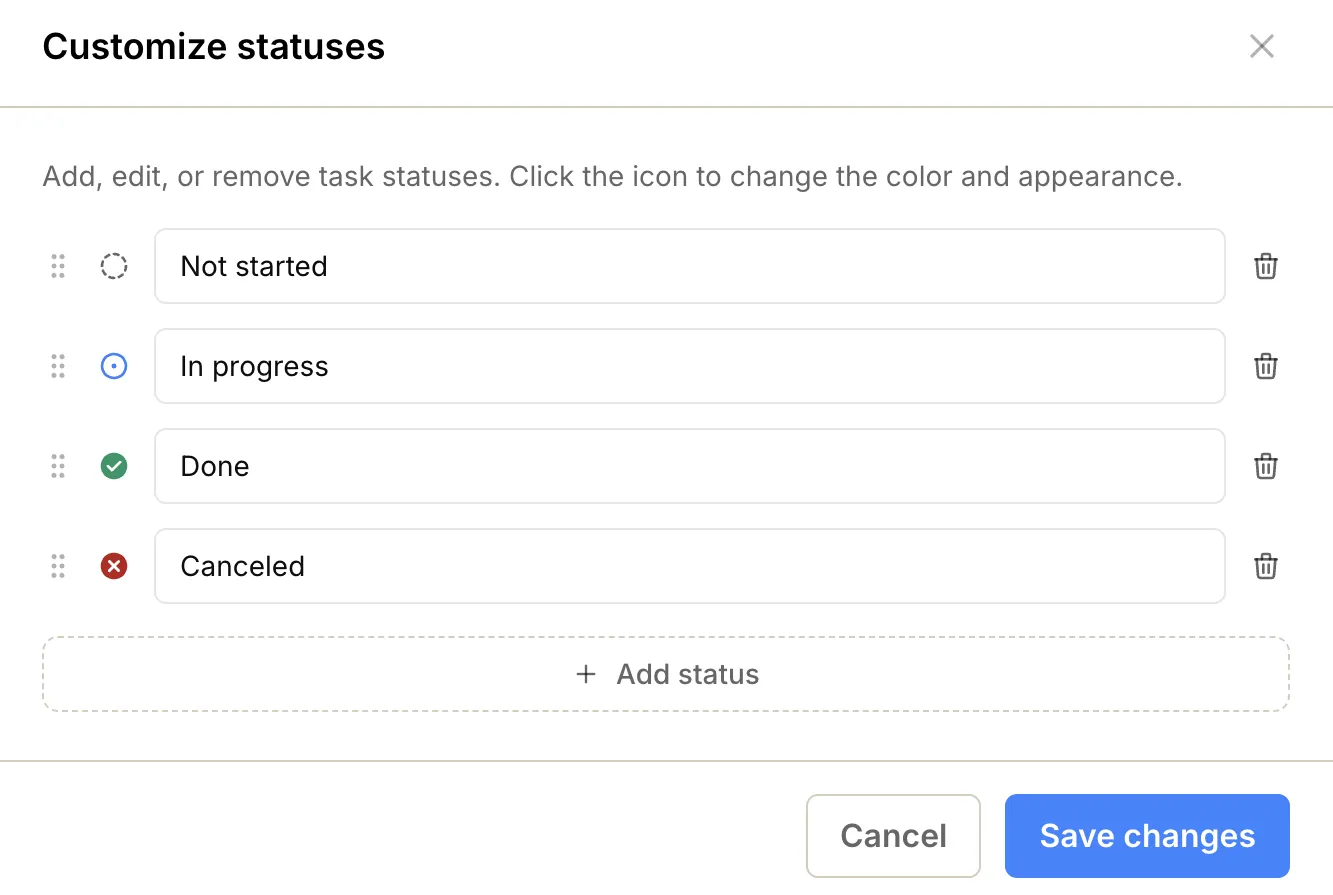
Adding a new status#
Section titled “Adding a new status#”You can create custom statuses to represent different stages of your workflow.
- Click the Add status button.
- Select a color/icon that best represents the new status.
- Enter a name for the status.
- Click Save changes.
Editing an existing status#
Section titled “Editing an existing status#”You can modify any existing status to better suit your terminology or visual preferences.
- Locate the status you want to edit.
- Click on the status icon/color and select the appropriate option.
- Enter a new name for the status.
- Click Save changes.
Reordering statuses#
Section titled “Reordering statuses#”The order of statuses in this list determines how they appear in dropdowns and kanban boards.
- Click and hold the drag handle (six dots) to the left of the status.
- Drag the status and drop it in the desired position.
- Click Save changes.
Deleting a status#
Section titled “Deleting a status#”You can remove statuses that are no longer needed.
- Click the bin icon to the right of the status you wish to delete.
- Existing tasks might be using this status, so you will be prompted to select a replacement status.
- Click Save changes.