

Edit a task
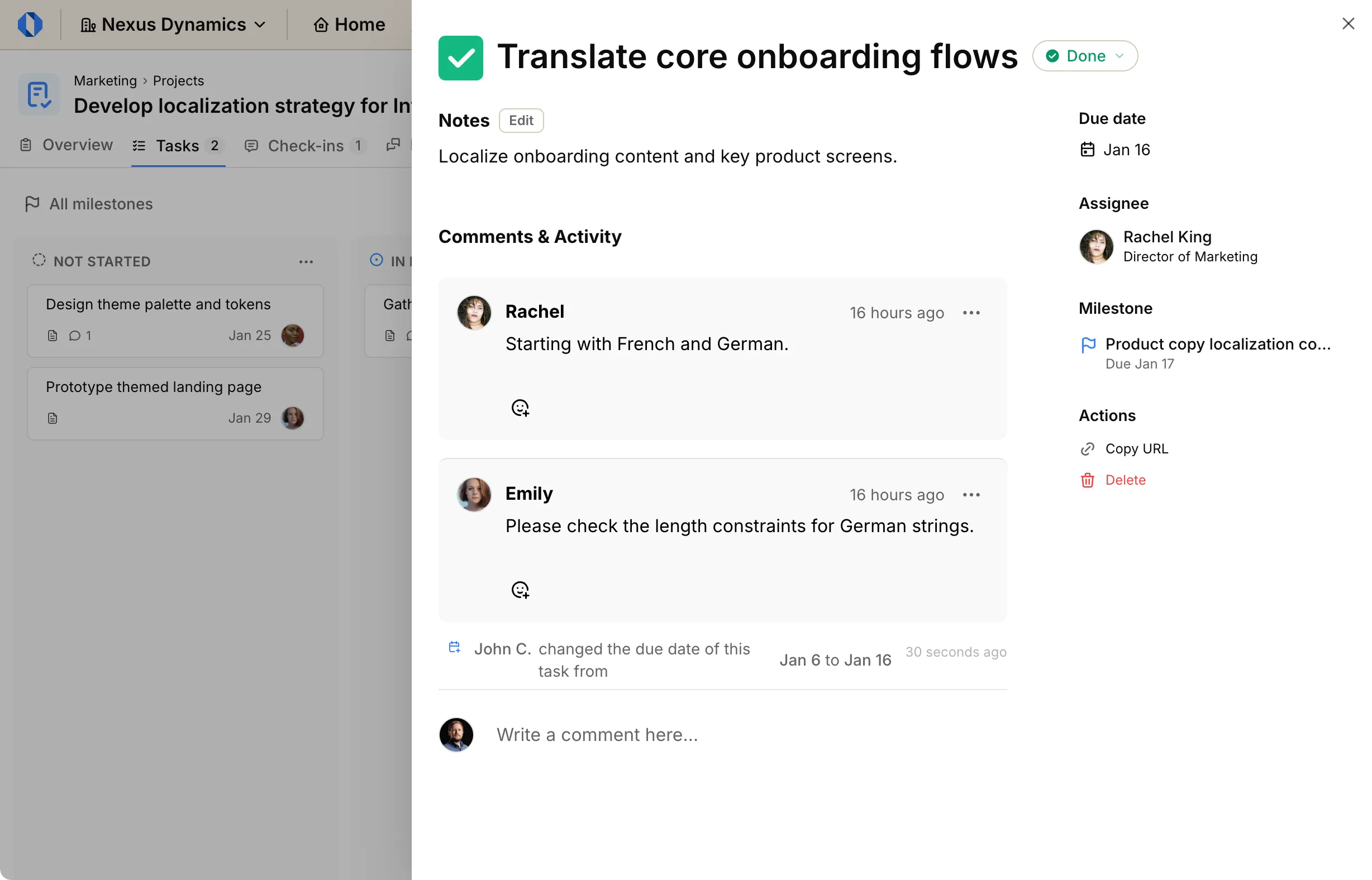
Clicking a task opens a slide-in view with the task’s details. You can open tasks from Kanban boards, project task lists, milestone task lists, and other task views. Use keyboard shortcuts to move between tasks quickly in supported views.
Updating task details#
Section titled “Updating task details#”You can modify key information directly from the slide-in view:
Update task name#
Section titled “Update task name#”- Click on the task’s name at the top of the view.
- Enter the new name.
- Press Enter to save.
Edit notes#
Section titled “Edit notes#”Add notes:
- Click Add notes about this task….
- Enter your notes.
- Click Save.
Edit existing notes:
- Click the Edit button next to the notes.
- Modify your notes.
- Click Save.
Edit due date#
Section titled “Edit due date#”- Click Set due date (or the current date if one is set).
- Choose a date type, then select the date.
- Click Confirm.
Date type options#
Section titled “Date type options#”The date picker offers four different granularities:
Day — For specific deadlines. Choose a particular day when the task should be completed.
Month — For broader timeframes. Useful when you need flexibility within a month.
Quarter — For work that aligns with a planning quarter.
Year — For long-term work. Use when the task is due sometime in a given year.
Edit assignees#
Section titled “Edit assignees#”Tasks support multiple assignees.
Assign people:
- Click Assign task.
- Select one or more people from the list.
Change assignees:
- Click the current assignee area.
- Add or remove assignees from the list.
Reminders#
Section titled “Reminders#”In the sidebar, open Reminders and click Add reminder to configure timing. The task needs at least one assignee before reminders appear. See Configure task reminders.
Edit milestone (Project tasks only)#
Section titled “Edit milestone (Project tasks only)#”Set milestone:
- Click Select milestone.
- Choose a milestone from the list.
Change milestone:
- Click the current milestone name.
- Select Choose different milestone.
- Pick the new milestone from the list.
Task actions#
Section titled “Task actions#”In the actions section of the slide-in view, you can perform additional operations:
- Copy link: Get a direct link to the specific task to share with others.
- Delete task: Permanently remove the task from the board.
Activity and comments#
Section titled “Activity and comments#”The slide-in view also shows the task’s timeline:
- Timeline: View a chronological history of all events and changes related to the task.
- Comments: Add comments to discuss the task, ask questions, or provide updates to your team.
Subscriptions#
Section titled “Subscriptions#”Use the subscription section in the sidebar to manage who receives notifications. See Subscriptions.
Keyboard shortcuts#
Section titled “Keyboard shortcuts#”With a task selected:
- j / k — next / previous task
- Enter — open the task
- a — assignee
- d — due date
- c — create a task (board view, when you can edit)
- Esc — clear the selection