

View document version history
Published documents keep a history of title and content changes. You can open History of changes, compare adjacent versions, and restore an earlier version. Restoring creates a new current version; later versions stay in the history.
Drafts have no history.
View history#
Section titled “View history#”- Open the document.
- Click the … menu in the top right corner.
- Select History of changes. The page heading is History of changes.
- Select a version in the timeline. The Latest badge marks the current version.
- Review the selected version’s title and content on the left.
Anyone who can view the document can open History of changes.
Compare versions#
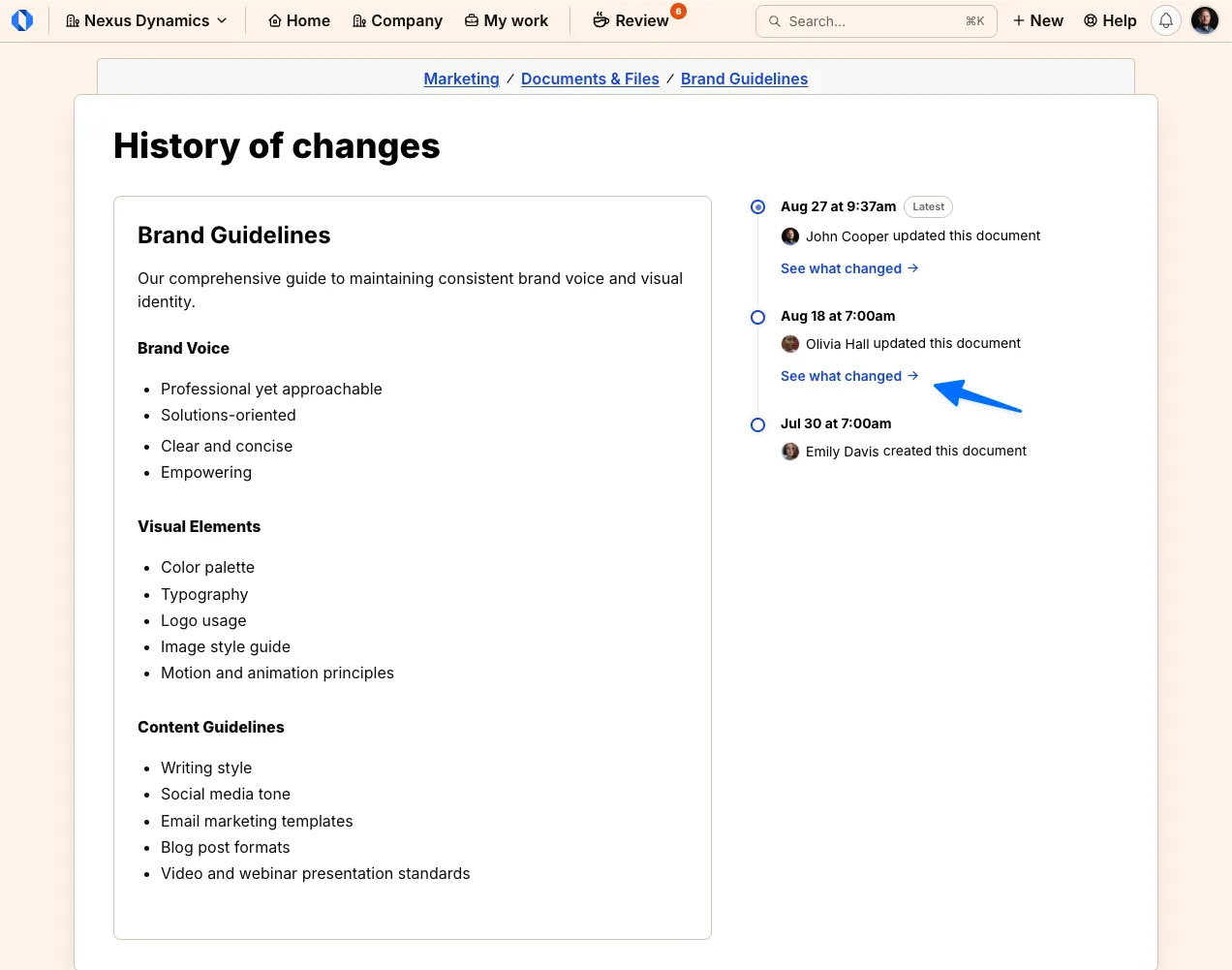
Section titled “Compare versions#”- On History of changes, click See what changed on a version in the timeline.
- Review the Before and After panes. The legend uses Removed and Added.
Restore a version#
Section titled “Restore a version#”Restoring requires permission to edit the document. Restores do not notify people.
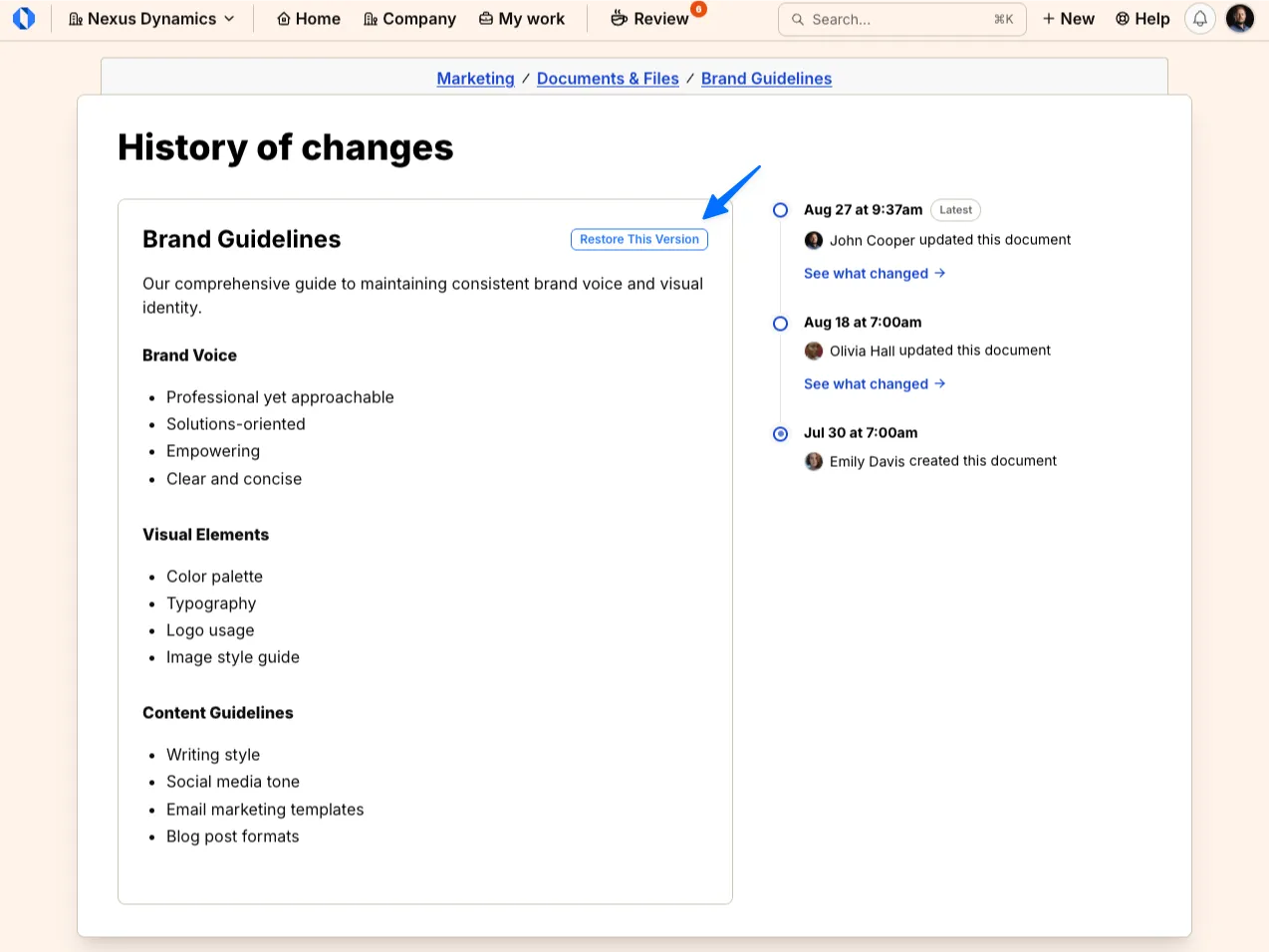
- On History of changes, select the version you want.
- Click Restore This Version.
- Confirm on Restore this version? The message is: This replaces the current title and content with the selected version. Later versions will stay in the history.
- Click Restore. Click Cancel to keep the current version.
If someone saved a newer version while you had the page open, Operately shows Document changed since you opened it. Click Reload and try again.
Edge cases#
Section titled “Edge cases#”See also Edit a document and Export document as Markdown.