
Kanban Board
The Kanban board helps you visualize and manage tasks more easily. It displays tasks as cards organized into columns representing their status, allowing you to track progress at a glance.
The Kanban board is available for both Space and Project tasks.
Kanban for Spaces#
In Spaces, the Kanban board is available as part of the Tasks tool.
Kanban for Projects#
In Projects, tasks are shown in the Tasks tab in a list view by default. You can easily switch to the Kanban board view.
To switch to Kanban view:
- Navigate to the Project page.
- Click on the Tasks tab.
- Click the Display button in the top-right corner of the page.
- Select Board from the dropdown menu.
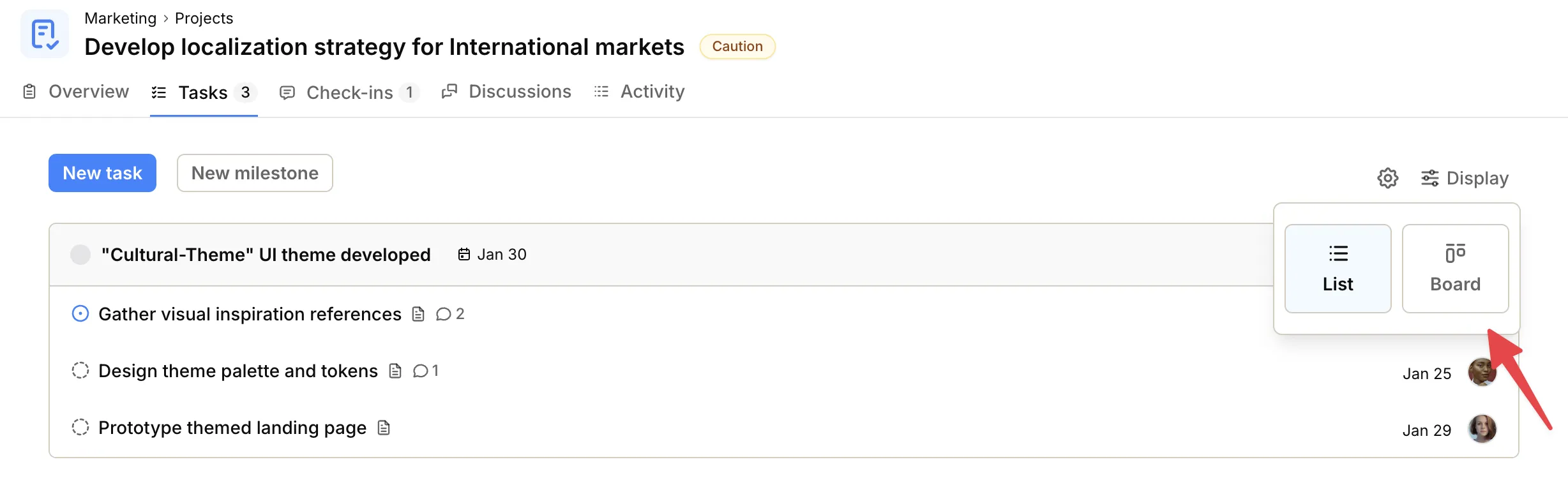
If you can edit the project, your List or Board choice is saved for the team. People who cannot edit can still switch locally.
Filtering by milestone (Projects)#
By default, the board shows All project tasks. Use Viewing tasks for to filter to one milestone, or click Create milestone.
To filter tasks by milestone:
- Click Viewing tasks for in the top-left part of the screen.
- Select All project tasks or a milestone name.
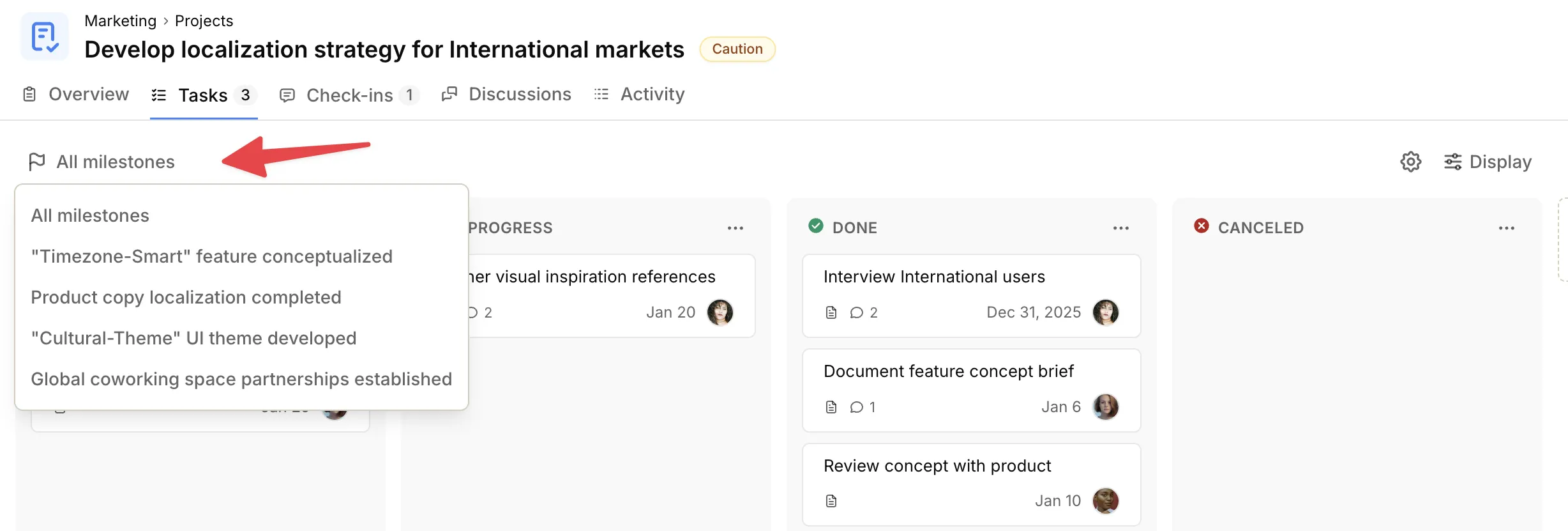
Only tasks that belong to the selected milestone will appear on the board.
Using the Kanban board#
In the Kanban board, each status is represented as a column and the tasks are placed in the columns according to their status.
You can drag and drop tasks into a new status or a new place to update a task’s status or its position in the Kanban board.
Completed milestones are collapsed by default under N completed milestone(s). Expand that section to see them.