

Team invite links
Inviting team members one by one can be tedious. With Team Invite Links, you can generate a single, shareable link that lets your entire team join your organization instantly.
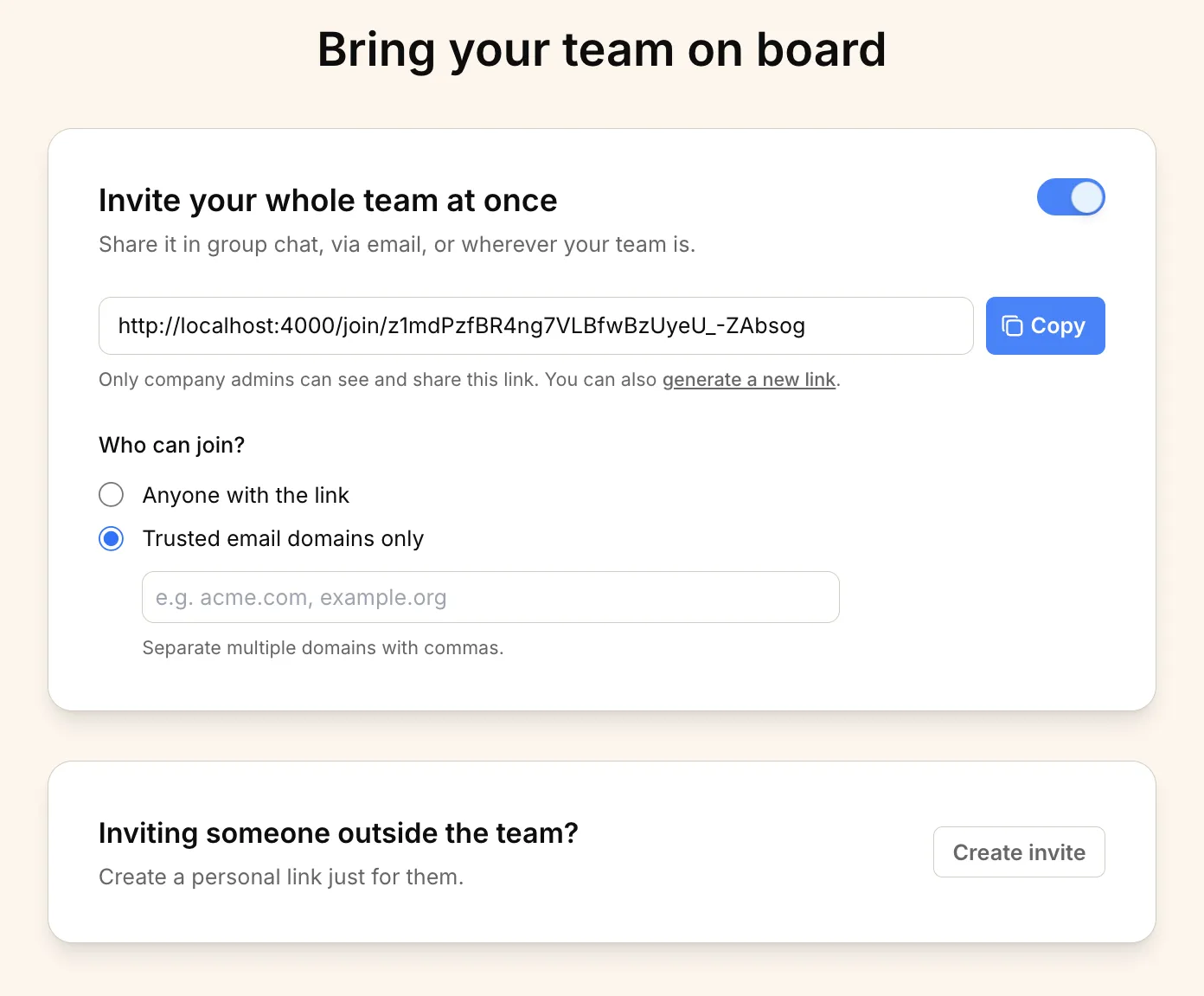
Accessing the Team Invite page#
To access the team invite settings:
- Navigate to the Home page.
- Click the Invite People button in the top right corner.
Managing your Team Invite Link#
On the invite page, you have full control over how your team joins.
Enable or disable the link#
You can toggle the invite link on or off at any time.
- Enabled: Anyone with access to the link (and meeting the security requirements) can join your organization.
- Disabled: The link will not work, and no one can use it to join.
Control who can join#
You can restrict who is allowed to use the invite link:
- Anyone with the link: Any user who has the link can join your organization.
- Trusted email domains only: Only users with an email address from your trusted domains (e.g.,
@yourcompany.com) can join. This adds an extra layer of security.
Share the link#
Once your link is configured:
- Click the Copy button next to the link URL.
- Share the link with your team.
Generate a new link#
If you need to revoke access to the current link (for example, if it was shared with the wrong person), you can generate a new one.
- Click the generate a new link text below the link box.
- This will immediately invalidate the old link and create a new one. Anyone trying to use the old link will no longer be able to join.
Inviting specific people#
If you prefer to invite someone individually:
- In the Inviting someone outside the team? section, click the Create invite button.
- You will be redirected to a page where you can create an invitation for a specific person.